While you might be familiar with the term “thesaurus” as a resource for finding synonyms, they mean something slightly different in an academic research context. In databases, you may see the option for a thesaurus that shows the standardized terminology for a discipline and that term’s relationship to other concepts.
When you search a thesaurus for a keyword you are using in your research, the preferred term for that keyword will be shown, along with terms that are related. The related terms may be a broader category or more specific sub-terms. They are displayed in the thesaurus and allow you to decide whether you want to include the broader or narrower terms in addition to the preferred term in your search.
Not all disciplines use thesauri, so they do not appear in all databases. They can be found in Engineering Village (controlled vocabularies available for both Compendex, using the Engineering Index Thesaurus and Inspec, using its own proprietary thesaurus), PubMed (which uses the Medical Subject Headings (or MeSH) Database), PsycNET (which uses the APA Thesaurus), and ProQuest, which includes multiple thesauri such as MeSH.
Engineering Village
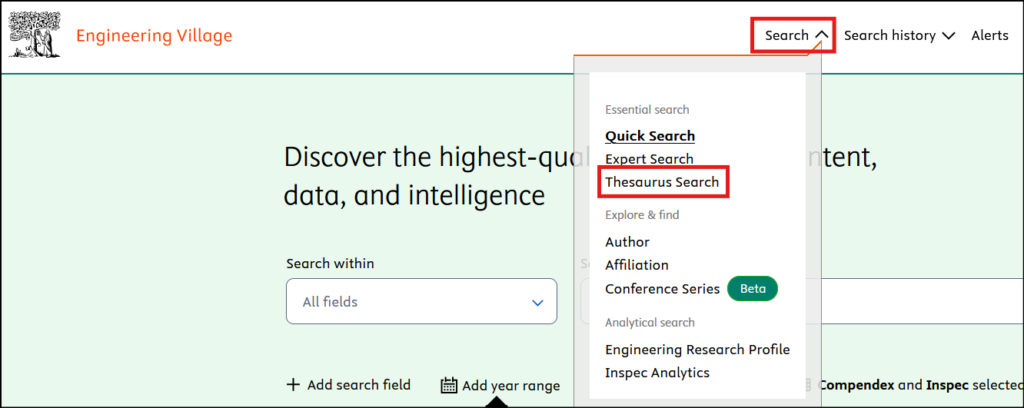
To access the thesaurus search option in Engineering Village, select the Search dropdown from the homepage.
Identify the database you wish to use, either Compendex or Inspec. Compendex uses the Engineering Index Thesaurus and Inspec a thesaurus developed in-house.
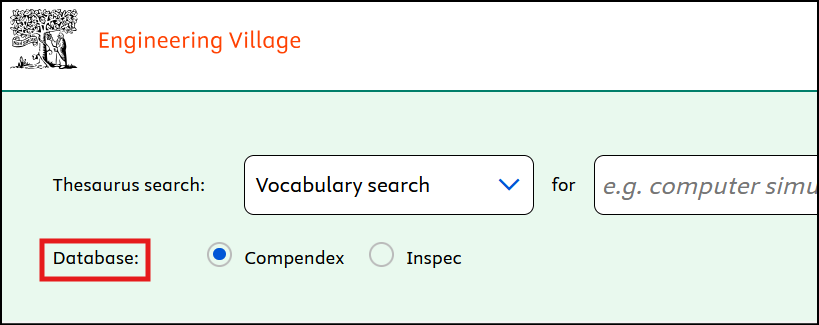
You can search by vocabulary, exact term, or browse. Vocabulary search finds a best-matched term based on what you enter, while exact will look up the term entered, and browse allows you to navigate through a list from a starting term.
Regardless of the option you choose, you can click on any term to find more information, including any past terms that were used historically, broader terms, related terms, and narrower terms (if applicable).
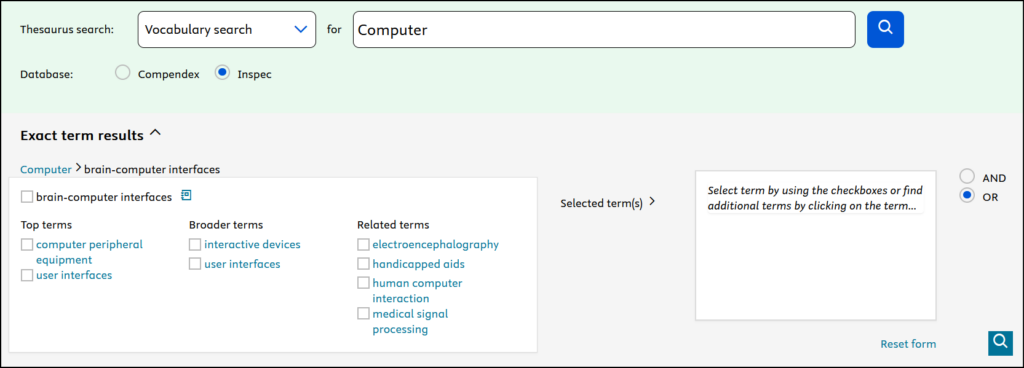
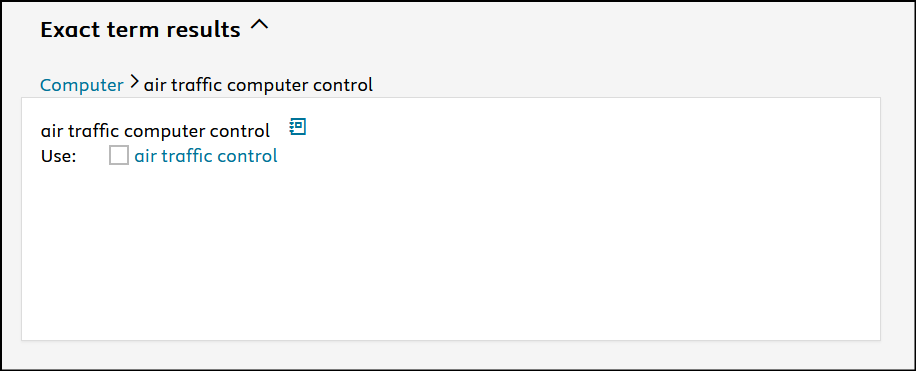
Search strings can be built by selecting the checkbox next to a term. Navigate to the list of results by clicking on the hyperlinked term above the results list (in this example, “computer”).
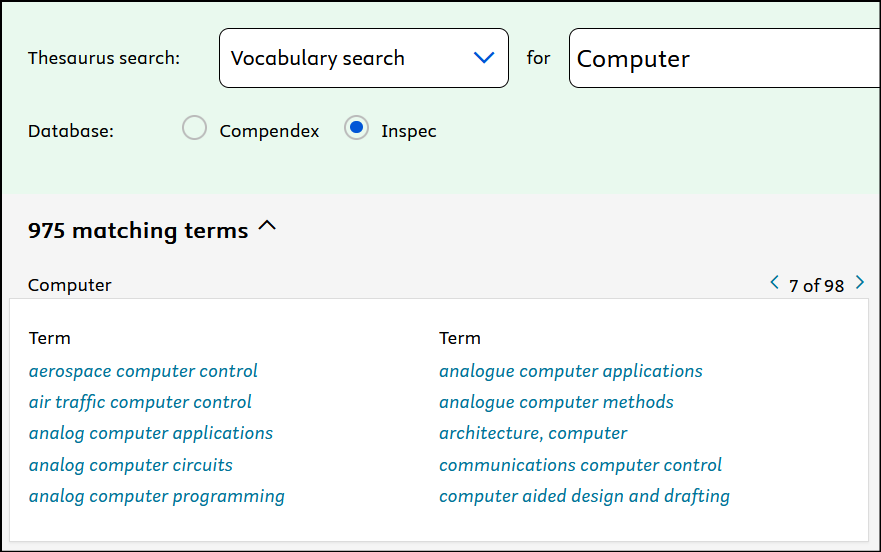
Some results will not have a checkbox; this indicates that the selected term is not indexed. Instead, the thesaurus will show the terms you should use in its place.
Example: selecting “air traffic computer control” will show that the preferred term you should use instead is simply “air traffic control.”
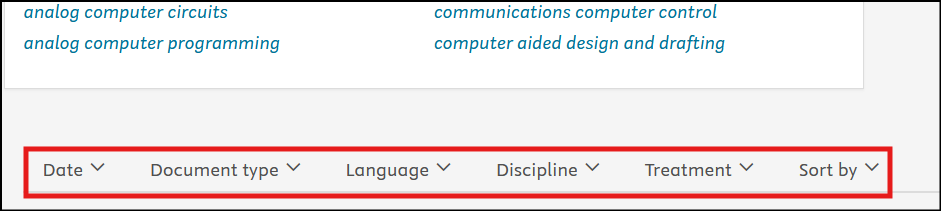
Unlike many other thesaurus search options, Engineering Village allows you to easily include limiters to the search string you build, including date, document type, language, discipline, treatment, and how the results should be sorted.
PsycNET
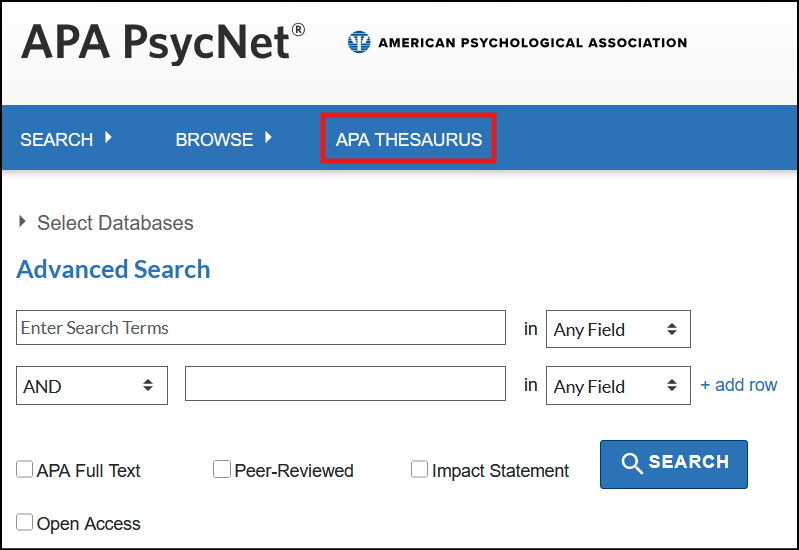
From the main homepage of APA PsycNET, you can select the APA Thesaurus to browse the preferred terms used in psychology research.
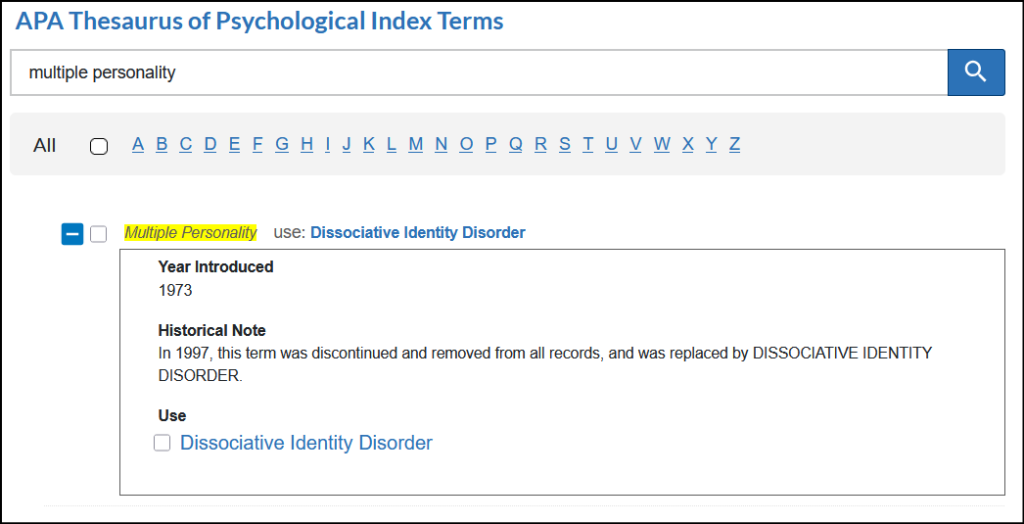
You can browse the headings or search for a term. If you search for a term that is not used in current research, like outdated terminology, you will be told what the preferred term is:
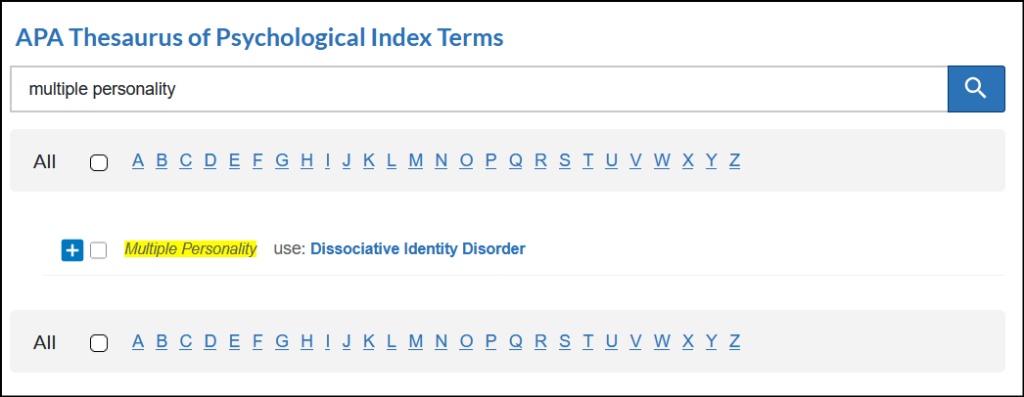
Click on the + to open additional details on when the preferred term was introduced and the outdated terminology replaced:
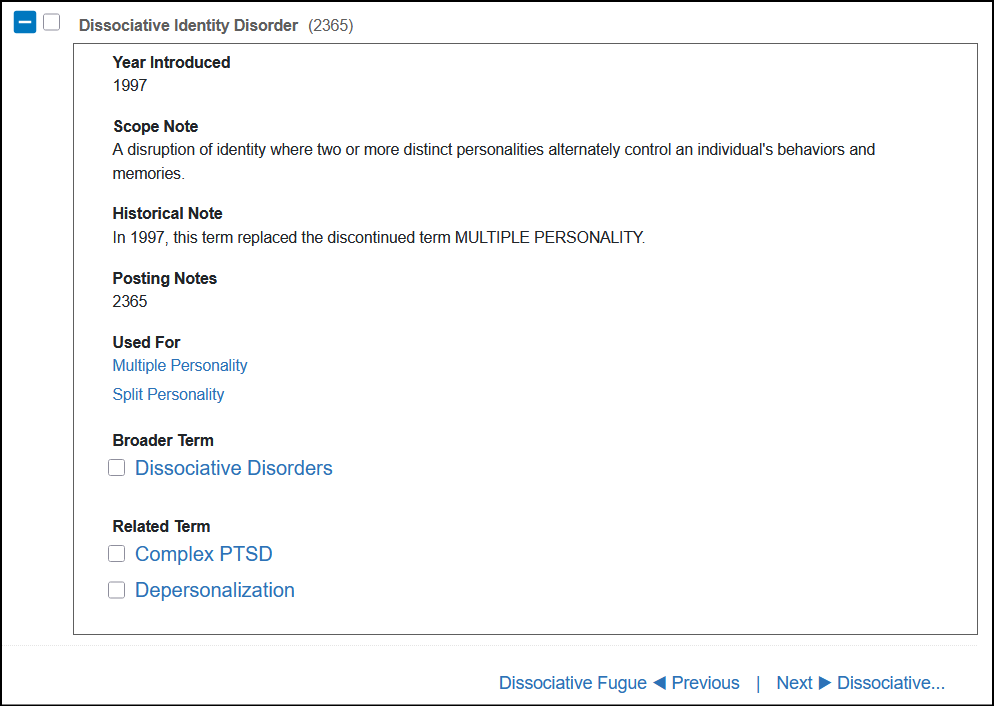
You can also click directly on the preferred term (in this case, Dissociative Identity Disorder) to find more information on the term. The information provided shows the broader category and other related terms. Clicking into the checkboxes next to each term will include it in a subject search.
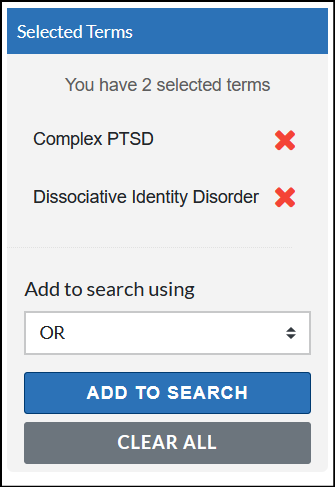
You can continue selecting terms to add to your search to build a more complex search string, identifying which Boolean operator you want to use to connect the terms.
ProQuest
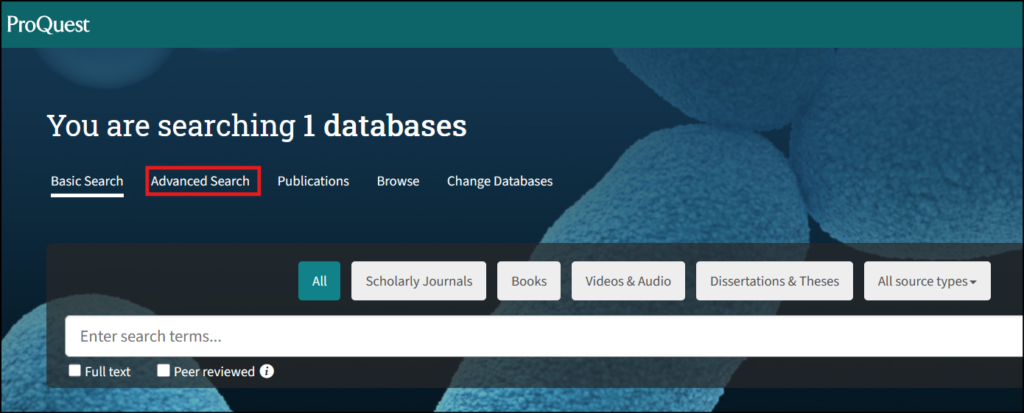
You can navigate to the Thesaurus from any ProQuest collection homepage by selecting Advanced Search.
Once on the Advanced Search page, selecting Thesaurus will trigger a pop-up. You can either search for a term or browse.
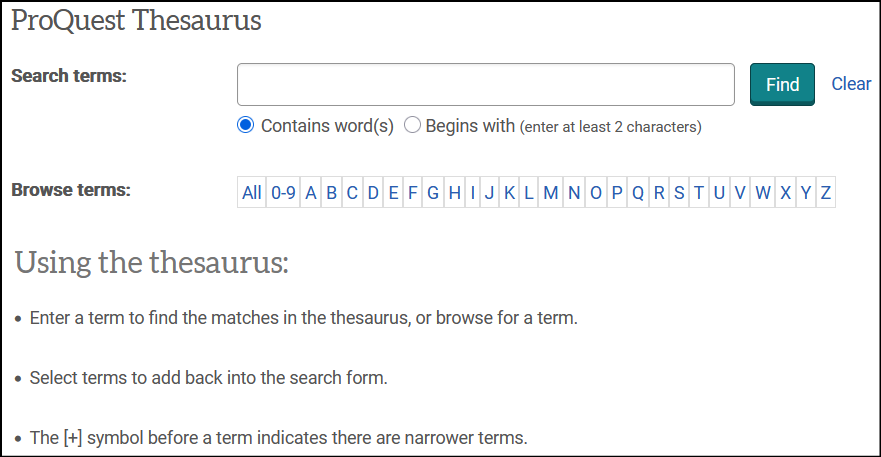
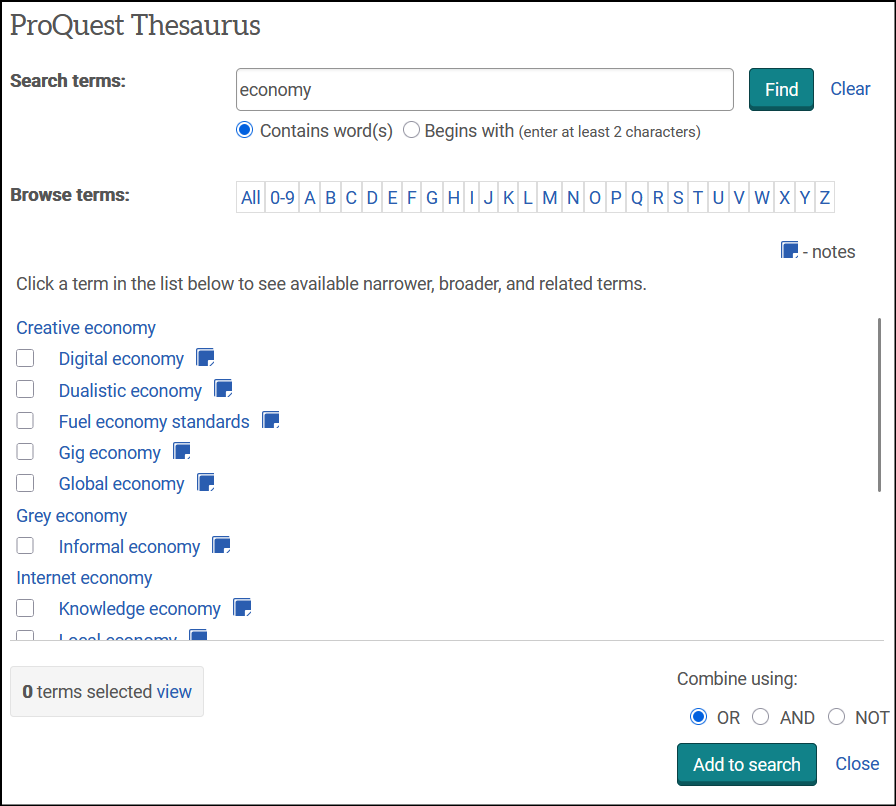
Searching a term will bring up any related terms you can choose from:
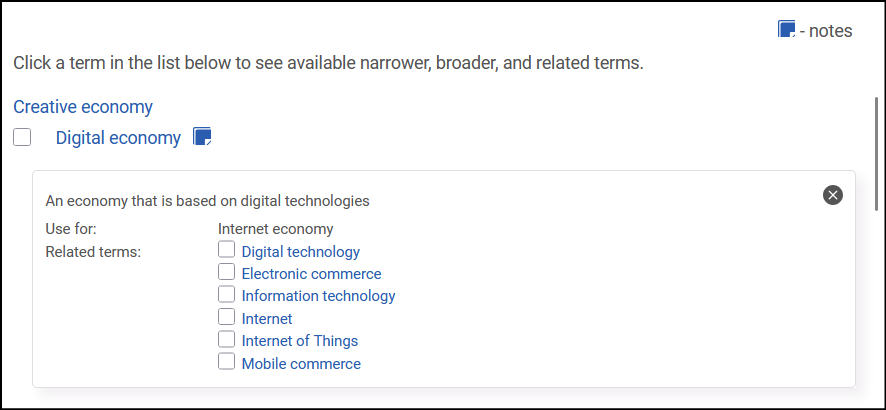
Selecting the blue notes box to the right of each term brings up additional details related to each result, if available, and provides additional related terms to look up and include in the search.
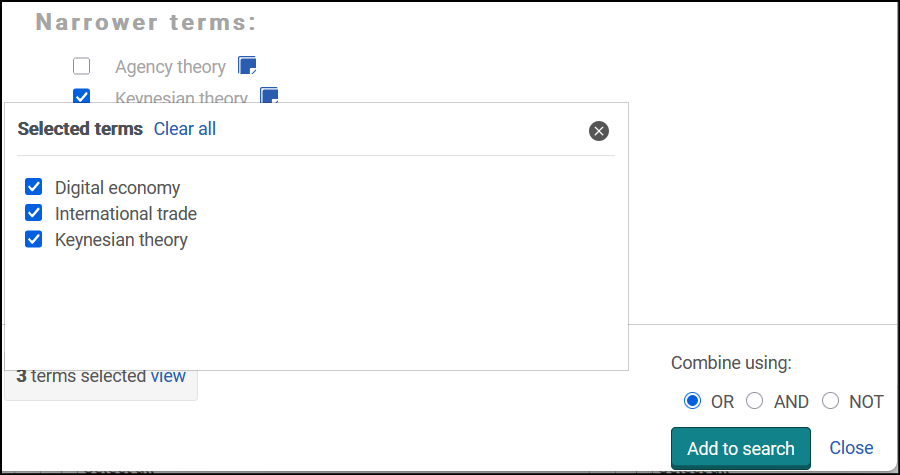
By checking the terms you want to include in your search, you can build a search string.
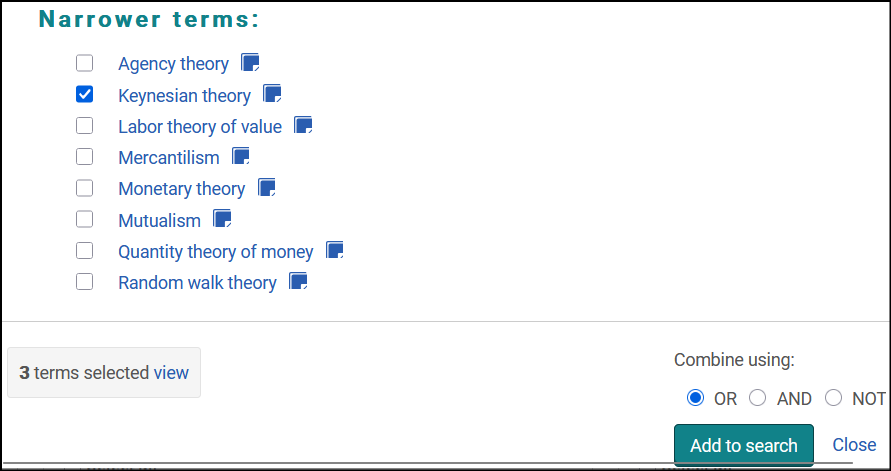
You can continue adding terms to your string by selecting terms, searching for new terms, and expanding the notes to find more terms. Do not select “Add to search” until you are ready to run your search! To see what is included in your search string, select “View” next to the selected terms. You can remove any (or all) terms from there.
PubMed
From the MeSH database, you can search for a term you’re interested in. This will bring up a list of results to select from. The result you select will open a new page that shows all the available subheadings:
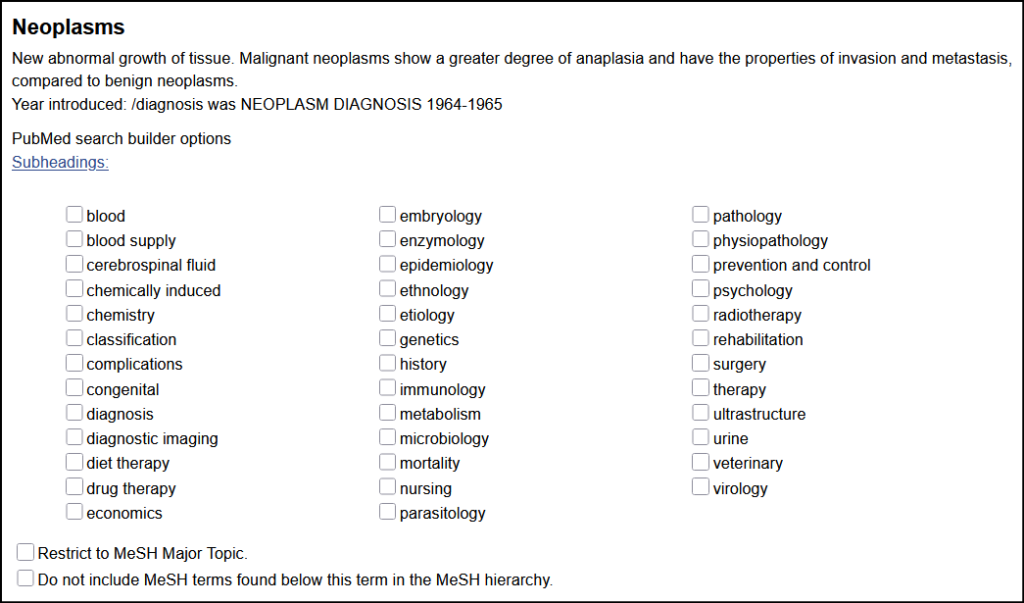
From here, you can include additional subheadings that are relevant to your search, or you can restrict to just the major heading.
To add terms to your search string, check the box next to the terms and select the “Add to search builder” option.
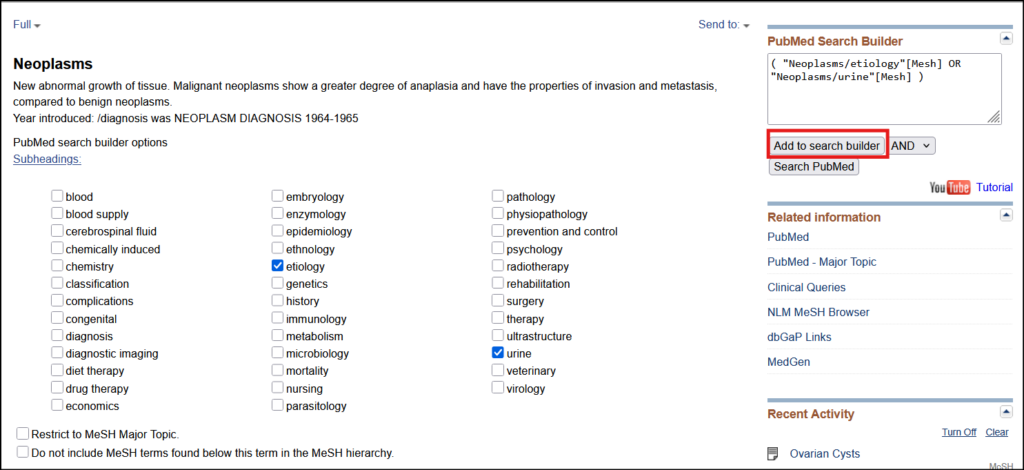
The database will specify additional terms related to the main result you found:
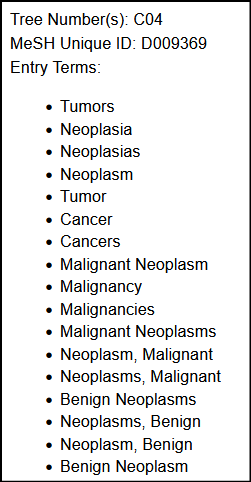
The subheadings show more specific terms you might be interested in:
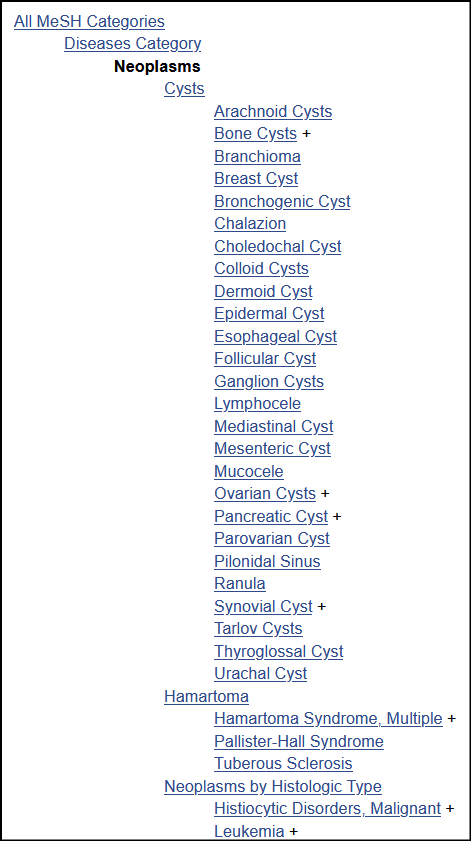
Those terms with a + after them have additional subterms, which get progressively more specific.
You can select the more specific categories and add them to the search builder before selecting “Search PubMed.”